# Way to start TT with a session
**URL:** https://www.tagtool.org/t/way-to-start-tt-with-a-session/2434
**Category:** Support
**Tags:** networking
**Created:** [May 2, 2024, 10:57am UTC](https://www.tagtool.org/t/way-to-start-tt-with-a-session/2434 "2024-05-02T10:57:15Z")
**Posts on this page:** 3
**Page:** 1
### Author:  [@davinel000](https://www.tagtool.org/u/davinel000)
#### Post date: [May 2, 2024, 10:57am UTC](https://www.tagtool.org/t/way-to-start-tt-with-a-session/2434/1 "2024-05-02T10:57:15Z")
Hello! I’m using TT in combination with TouchDesigner, and adding automation for autostart of the app combination. I use CMDs that access shortcuts like
start “Autostart TagTool” “bin\shortcuts\Tagtool\_shortcut.lnk” “-s” “-h”
timeout /t 10
It starts with spout, but I can’t find the way to start it with an opened local network session. Is there a workaround to do it? Thank you!
---
### Author:  [@iink](https://www.tagtool.org/u/iink)
#### Post date: [May 3, 2024, 8:39am UTC](https://www.tagtool.org/t/way-to-start-tt-with-a-session/2434/2 "2024-05-03T08:39:55Z")
Hey,
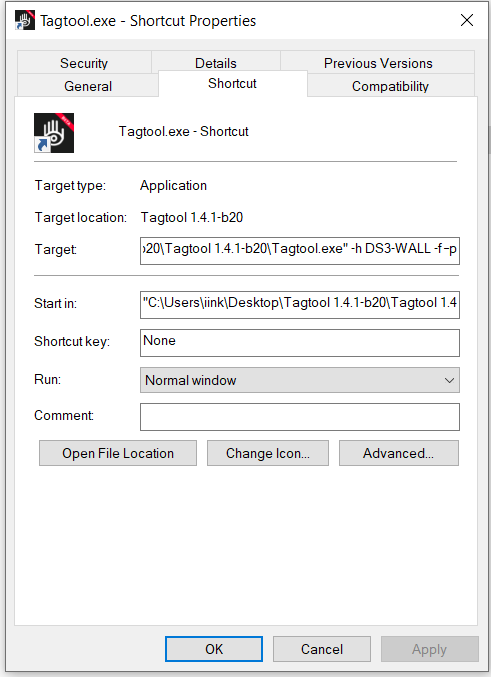
You just need "-p " to launch a network session.
Here is the list of commands for the Tagtool Player App:
- Enter Tagtool Desktop Server name: -h TagtoolServer
- Start a local network session with: -p
- Start Syphon/Spout with: -s
- Enter fullscreen with: -f
This is an example without launching Spout - Server is called “DS3-Wall”
---
### Author:  [@davinel000](https://www.tagtool.org/u/davinel000)
#### Post date: [May 3, 2024, 10:34am UTC](https://www.tagtool.org/t/way-to-start-tt-with-a-session/2434/3 "2024-05-03T10:34:18Z")
Thank you very much for your answer! Now, it’s clear:)